How to Get Verity to Actually Talk (Voice Setup Guide)
Verity shows up but won't speak? Here's how to set up the AI backend and text-to-speech so your yellow buddy actually has a voice. Covers Gemini, Groq, and Ollama options.
So you installed Verity. The yellow sphere appeared. It floats around. It stares at you. And it doesn’t say a word.
This is the number one problem people hit with this mod. Verity shows up but stays silent. The reason is almost always the same: the AI backend isn’t set up. Verity is not a pre-scripted NPC with canned responses. It runs on a real AI model, and you need to connect it to one before it’ll say anything.
Before we get into the actual setup, there’s something important to understand. The video this guide is based on comes from QuantumDuality on his Duality channel, and he opens with a disclaimer worth repeating:
“This mod is not condoned by ThatMob or Wispy for two reasons. Number one, ThatMob himself did not agree to the making of this mod. And Wispy does not agree with his voice being used in AI.”
So what he’s walking through is not the official Verity JE from CurseForge/Modrinth. It’s a community modpack that adds Verity’s voice on top of the base mod. The base mod works fine on its own. The voice setup is a separate layer. If you just want a working Verity companion, the official install guide covers it. If you specifically want Verity to talk out loud with a voice, keep reading.
Here’s how to fix the silence.
Why Verity Is Silent
Verity supports two AI modes: cloud (Groq or OpenRouter, needs an API key) and local (Ollama, runs on your own machine). The mod ships with neither pre-configured. You have to pick one and set it up.
If you launched the game without doing this step, you got a very quiet yellow ball. That’s normal. It’s not broken. You just haven’t told it how to think yet.
The same goes for text-to-speech. Even after the AI backend is running, Verity will respond in text on screen. Getting actual voice output requires a separate TTS provider setup. We’ll cover both.
One limit worth knowing up front, straight from the mod’s own page: the official mod’s speech-to-text and text-to-speech have only been tested in English. The AI itself handles other languages, but if you’re setting up voice in another language and something doesn’t work, that’s the likely reason.
Step 0: Getting the Mod
If you’re using the official Verity JE from CurseForge or Modrinth, you can skip to the AI setup below. The rest of this section is about the community voice modpack that QuantumDuality walks through in the video.
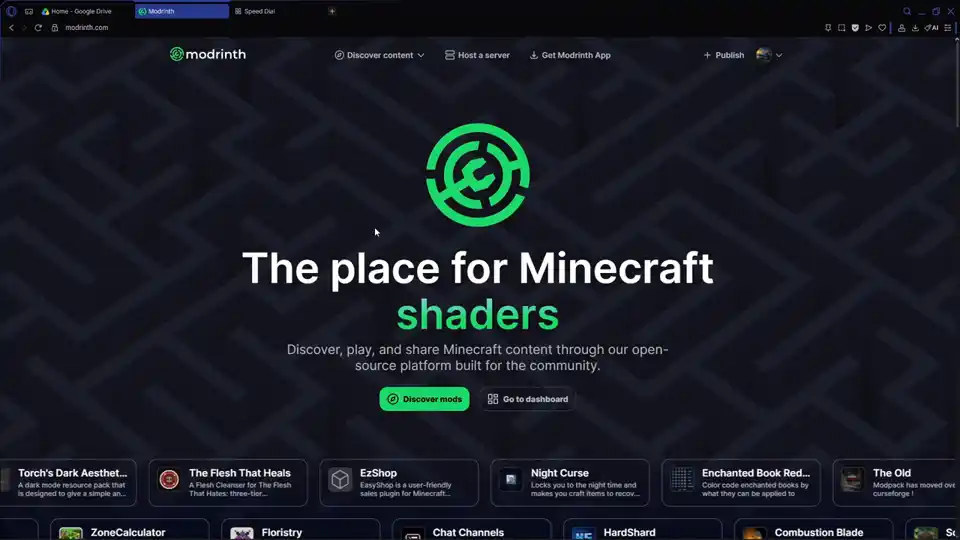
He’s clear about using Modrinth for the installation:
“You are going to need Modrinth at least for the majority of this video. There is a way to do it without Modrinth, I will also be explaining, but preferably, guys, just please do Modrinth. It’s a lot easier for you and me.”
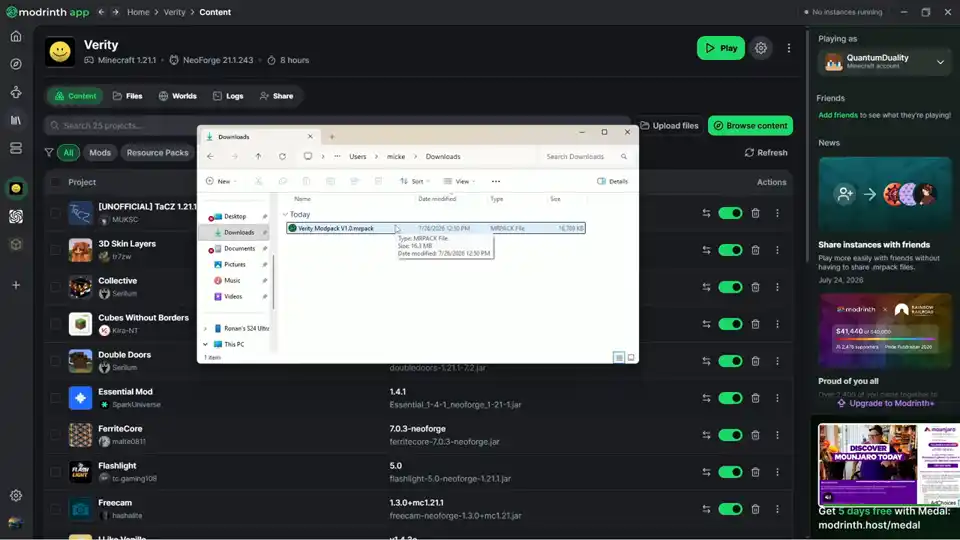
The modpack downloads as a .mrpack file from a Google Drive link. Once you have Modrinth installed and signed in, double-click the .mrpack file and it starts downloading everything automatically. When it finishes, you’ll see something that looks like a standard Modrinth instance, but there’s a catch that trips a lot of people up.
“This is where I actually think a lot of people’s problems are, because they’re just leaving it like this. All the mods are just going to be inside of the mod file, which personally, I think is very stupid because it does make the configurations mods a lot trickier.”
What he means is the .mrpack bundles all the mod JARs inside a single archive instead of extracting them into your mods folder. If you need to tweak individual mod configs later, you’ll have to dig into that archive. For the voice setup, this matters because the personality config and AI settings live inside one of those bundled mod files.
Configuring the Personality
Once Minecraft boots up with the modpack loaded, press O (the default key) to open Verity’s configuration menu. This is where most people get stuck, because the default settings don’t match what the video shows.
The personality dropdown is the first thing to check. If it says “Normal,” switch it to “Verity version 1.0.” That’s the custom personality QuantumDuality created for the video, and it’s what gives Verity the specific behavior you see in the gameplay. He noticed the default in-game personality wasn’t great, so he wrote his own.
“I made a not perfect, but this is the personality that it uses because I noticed that the in-game one isn’t great.”
Then there’s the companion name field. It’s not set to “Verity.” That’s intentional.
“The reason it’s not set to Verity is because the creator tried to get around copyright by changing things.”
So don’t be confused if the name field shows something other than “Verity.” It’s a workaround, not a bug.
Next, the microphone. Make sure the voice input device is set to your actual microphone, not whatever default the mod picked. Then hit the calibrate button and do a mic test. Say “hello, hello, hello” or whatever. As long as the mod picks it up, you’re fine. You might want to raise the gain if the input sounds quiet.
One more thing: make sure the voice input mode is set to “AI” and not any of the other options. He left it at AI and didn’t experiment with the alternatives.
“Make sure your voice input is set to AI, not any other options because it’s more complicated. I just left it at AI. I don’t want to experiment with that too much.”
Fair enough. If it ain’t broke.
Setting Up the AI Backend (Gemini)
This is where Verity starts thinking. The config menu shows several AI provider options: OpenAI, Groq, Ollama, Custom, and Gemini.
The video uses Gemini because that’s what the modpack recommends. And since QuantumDuality has a GPT Plus subscription but chose Gemini anyway, it’s not just a default fallback. It’s a legitimate option.
Here’s the step-by-step:
- Go to Google AI Studio
- Click “Get Started”
- Navigate to your dashboard
- Click “Create API key”
- Name it whatever (he used “tutorial”)
- Leave the defaults and click “Create key”
- Copy the key
He makes a point of noting that his API key was visible on screen during recording and that he deleted it immediately after.
“For anybody saying anything, yes, you can see my API key here. I’m deleting this like I’m going to literally delete this in a second so that way you guys can’t steal my stuff.”
Good instinct. If you’re following along and your key shows up on screen during recording, revoke it immediately. Don’t wait.
Back in Minecraft, paste the API key into the Gemini field in Verity’s config. At this point, the AI brain is connected. Verity can process what you say and generate text responses. It won’t speak out loud yet, but it will respond on screen.
Try it. Say “Hello, Verity.” If you see a text response appear, the AI side is working. Now we need the voice.
Setting Up Text-to-Speech (Fish Audio)
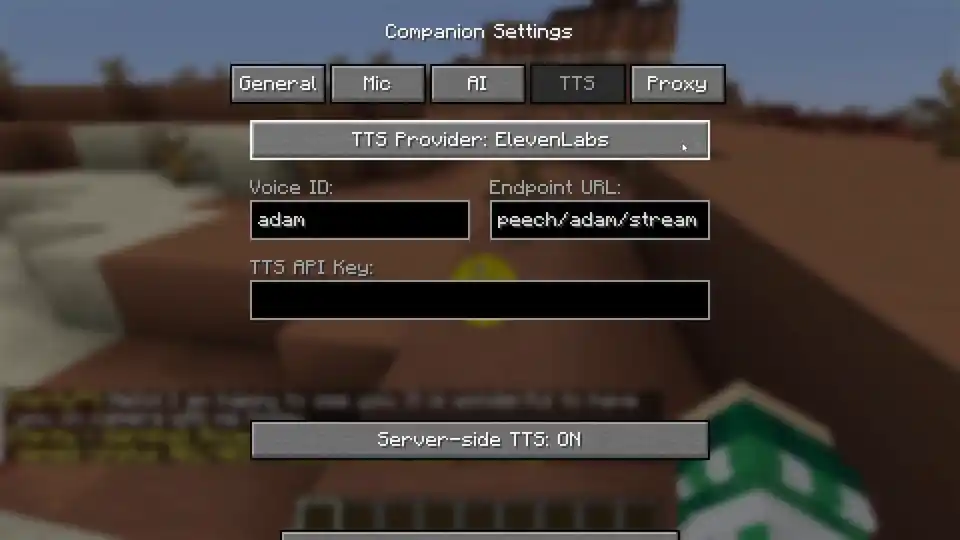
The AI backend handles thinking. TTS handles speaking. The config menu shows several TTS options:
- Disabled - text only, no voice
- Local Python - runs on your machine, quality is rough
- Eleven Labs - good quality, paid
- Groq - another option, not what the video uses
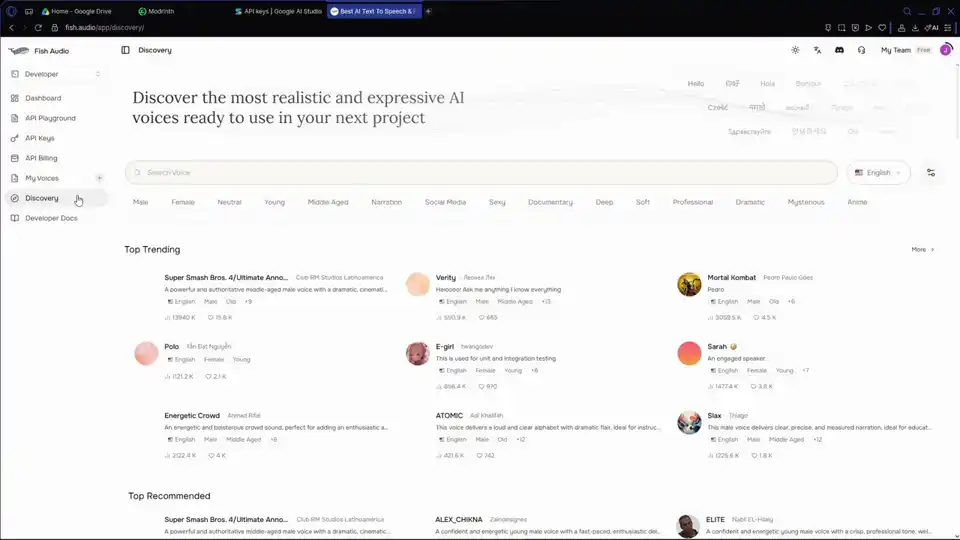
- Fish Audio - free tier, decent quality, what the video uses
Fish Audio is the pick here. It’s free, has a generous tier, and the voices sound natural enough for a Minecraft companion. The setup follows the same pattern as the AI key.
- Go to Fish Audio and sign up
- Create an API key (name it whatever, set expiry to never or whatever you prefer)
- Copy the secret key
- Back in Minecraft, select “Fish Audio” as the TTS provider
- Paste the key
“And again, this is all free.”
That’s the TTS provider sorted. But there’s one more step that makes the voice actually sound right.
Getting Verity’s Actual Voice
At this point, Verity will speak out loud, but it won’t sound like Verity. It’ll sound like a generic TTS voice. If you want the voice that matches what you see in the video, you need the specific voice model.
The video links to a Fish Audio voice model page. Find the voice that “sounds like Verity” - the description says “This voice is perfect for animated characters and playful narrations.” When you find it, click the three dots menu and select “Copy Model ID.”
Paste that model ID into the Voice ID field in Verity’s config.
Now try it for real:
“Hey Verity, where’s the nearest village?”
The response takes a second to generate - the mod needs to process your speech through the AI, generate text, then run it through TTS. Not instant, but fast enough.
“The nearest village is 516 blocks to the southwest, to your left, on your left.”
He tests the default personality too, and it responds differently:
“The nearest village is 412 blocks to the west, to your left, on your right. Are you planning to trade or just explore?”
His reaction: “Okay. Never mind. He’s schizophrenic either way.”
The custom personality is supposed to give Verity an obsessive quality, but he admits it doesn’t work perfectly. The responses are close but not exactly what the video shows. That’s fine. The voice is what matters.
Full Working Example
Once everything is configured, here’s what a conversation looks like:
“Hey Verity, how’s it going?”
“I am doing quite well. Thank you for asking. It is lovely to be recorded on such a beautiful day.”
“Hello again. It is wonderful to see you on camera with me.”
The voice sounds polite, slightly formal, and cheerful. It’s the Verity personality running through Fish Audio’s TTS. The whole loop - microphone input, AI processing, TTS generation, audio output - takes about a second or two.
What About No Modrinth?
Not everyone wants to use Modrinth. If that’s you, there’s a workaround. QuantumDuality offers a one-time zip file with all the mods extracted, available through a second link in his video description.
“I will take the mods from this and I will put them into a zip file so that you guys can download them, extract them into your Minecraft and play.”
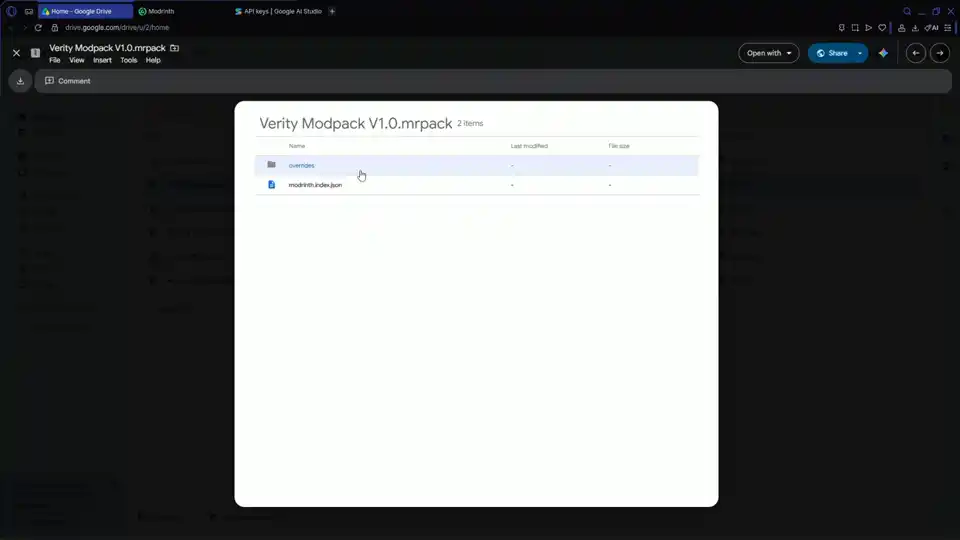
The catch: this is a one-time thing. He’s not going to do it for future modpacks. The .mrpack file from Modrinth bundles all mods in an archive, and if you try to download it without Modrinth, you won’t get the overrides or config files. You just get a locked archive with no access to the individual mods.
“You won’t have the overrides which means you won’t be able to get access to the config, the mods or anything else.”
His recommendation is straightforward: just use Modrinth. It’s free, it handles the modpack format properly, and it makes everything ten times easier. The zip file is a one-time courtesy, not a long-term solution.
Common Issues
Verity still won’t talk after setup. Check that your API key is valid. An expired or revoked key is the most common reason Verity goes silent after working fine. If you showed your key on screen during recording, revoke it and make a new one.
Voice sounds generic, not like Verity. You set up the TTS provider but skipped the voice model ID step. Go back to Fish Audio, find the specific voice model, copy its ID, and paste it in the Voice ID field. That’s what makes the difference between generic TTS and the actual Verity voice.
Verity responds slowly. Gemini and Fish Audio are both cloud services. If your internet is slow, the round-trip takes longer. The AI needs to process your speech, generate text, then send it to the TTS provider for voice synthesis. Three network calls minimum.
Verity hears me but doesn’t respond. Make sure your microphone is selected in Verity’s config, not your system default. The mod has its own mic selector and sometimes picks the wrong one. Hit calibrate, say something, and check if it picks up audio.
Personality doesn’t match the video. You’re on “Normal” instead of “Verity version 1.0.” Press O, find the personality dropdown, and switch it. The custom personality changes how Verity responds and what kind of attitude it has.
Chunks not loading, game lagging. This is a known issue with the modpack that even the creator couldn’t explain. It might be related to the bundled mod configuration or resource pack settings. Try adjusting video settings and enabling resource packs manually.
Don’t have Modrinth and the zip doesn’t work. You might be trying to use the .mrpack file directly without Modrinth. That won’t work. Either install Modrinth (recommended) or get the extracted zip from the creator’s second link.
A Note About Third-Party Mods
There are community-made versions of Verity that use custom voice models - including ones that clone specific YouTubers’ voices. These are NOT the official mod. The official Verity JE on CurseForge and Modrinth does not include any voice cloning.
“I want to make it very clear I am not condoning the use of Wispy’s AI voice or people going against the wishes of ThatMob by creating a mod without his permission.”
If you’re using a third-party mod pack that adds custom voices, be aware that the original creators may not have consented to their voice being used. The official mod respects that boundary.
For the official, sanctioned experience, stick with the CurseForge or Modrinth versions and use the built-in AI and TTS options. You’ll get a talking Verity without any ethical gray areas.
Independent fan site - not affiliated with or endorsed by Mojang, Microsoft, ThatMob, CurseForge, or Modrinth. Reference: “How to Setup the Verity Mod To have his voice!” by QuantumDuality on YouTube.
By Verity Mod Hub Team · Last updated: July 2026